
Support & Enablement
This hub brings together the technical resources used most across the Mimecast platform.
Technical Product Areas
Technical guidance and supporting material, grouped by key Mimecast product areas.
Human Risk / Awareness
Explore training modules, phishing simulation tools, and best practices designed to educate your workforce and reduce human-driven security incidents.
View resourcesHuman Risk Command Centre
Find operational guides, dashboard walkthroughs, and configuration resources to get the most out of your centralised security management console.
View resourcesInsider Risk Management
Access detection frameworks, policy templates, and response playbooks to help identify and mitigate threats originating from within your organisation.
View resourcesHuman Risk Management
Review strategic resources covering Mimecast's integrated approach to measuring, scoring, and reducing human risk across your organisation.
View resourcesTechnical Know How - How We Can Help...
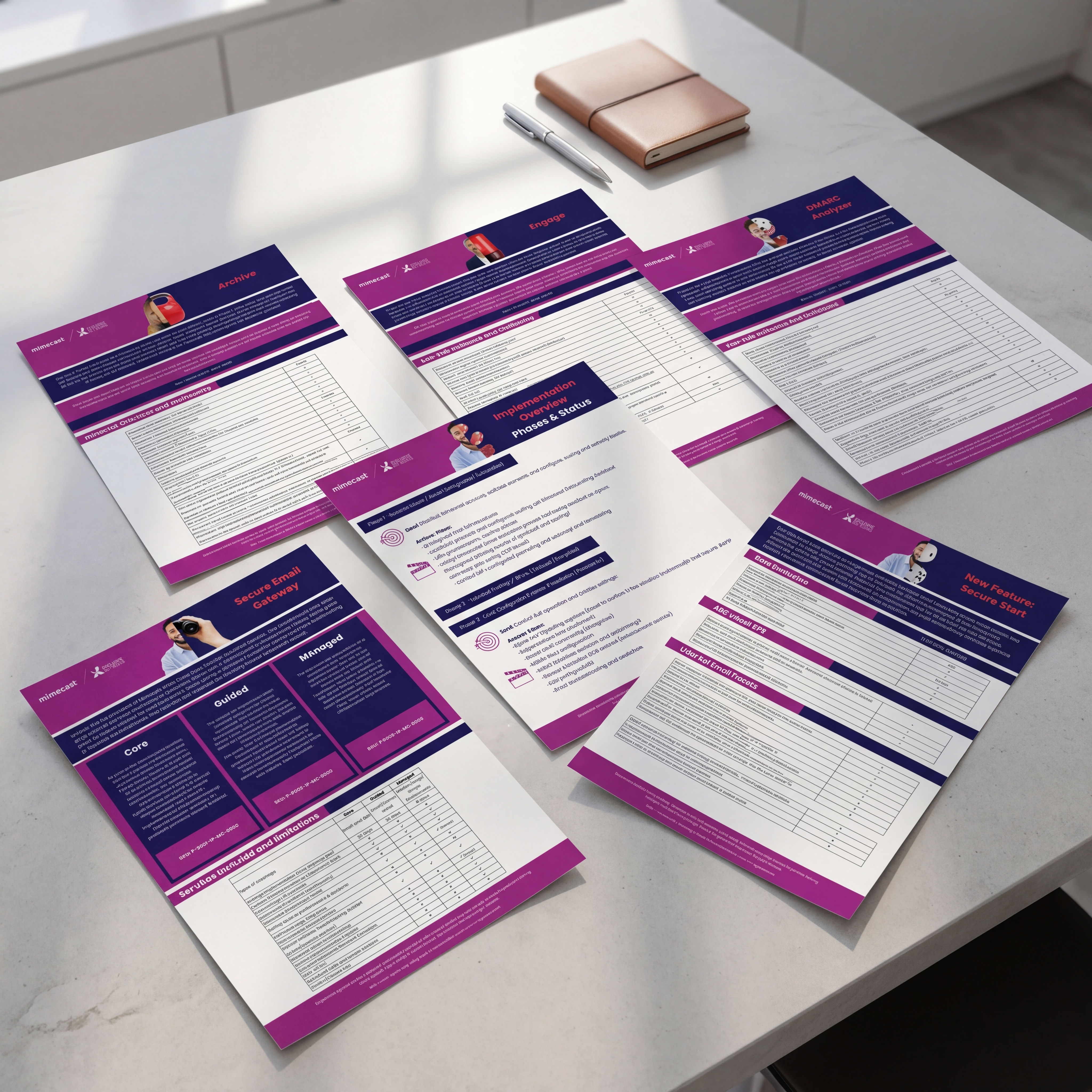
A central library of technical material.
Demo walkthroughs
Implementation and configuration resources
Technical blogs and updates
Latest technical updates
Hands on technical training for Mimecast.
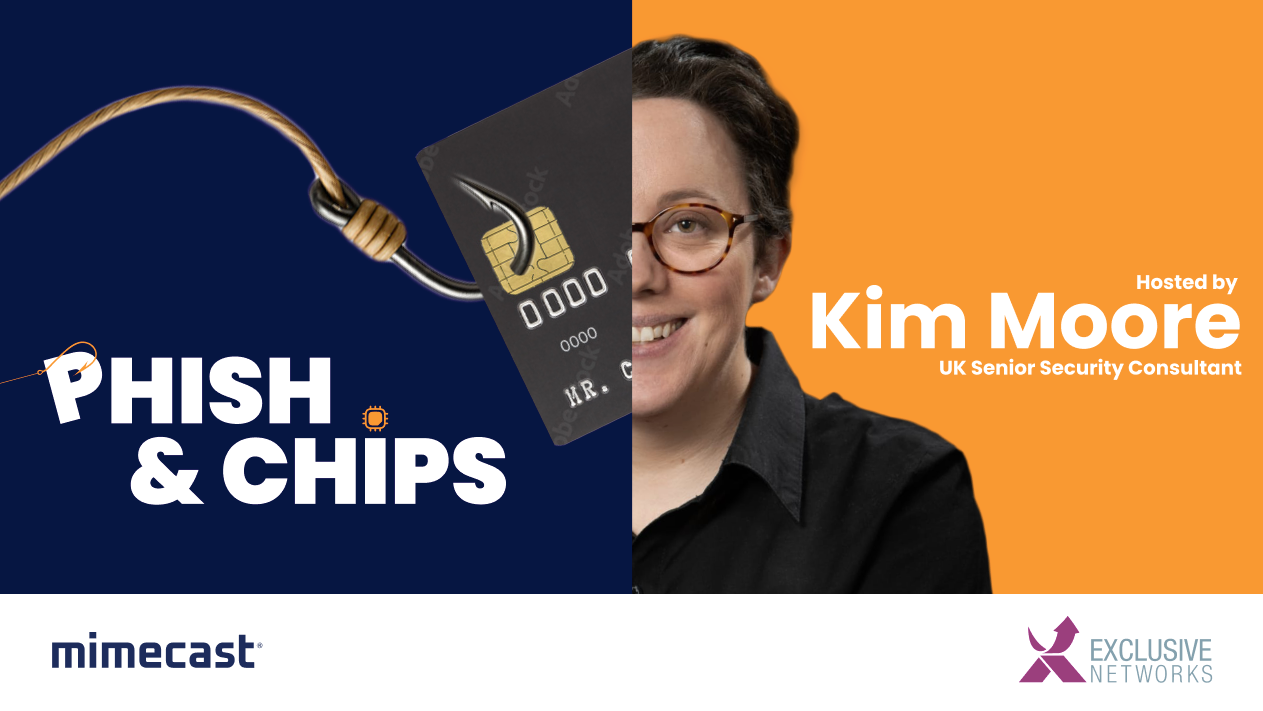
Phish & Chips Technical Days
Phish & Chips sessions go deeper than standard enablement. These sessions focus on deployment scenarios, product capability, and open technical discussion.
Frequently Asked Questions
Where can I see who has a suitable Administrator role within my organisation?
Under the Account | Roles menu in the Administration Console, you will find your organisation's Administrator roles. By clicking the role itself, you will be able to see who the members of the role are.
How can I resolve general policy configuration problems?
Any time a policy doesn't apply to a message as expected, check the following: Ensure the policy is scoped properly (including envelope/header, etc.). Ensure that default policies have not had IPs added to them. Confirm that the policy's definition is set to the expected values. If a policy should apply to all inbound mail, ensure it's set as "From Everyone, To Internal" (except for Impersonation Protect, which should be "External to Internal"). Consider if there are other policies that are taking precedence.
Our inbound mail is not being routed as expected. What could be the problem?
First, confirm that your server's firewall is allowing connections to Mimecast. A test delivery route option can be used in your Delivery Routing Definitions. The policies should also be scoped correctly (i.e., Everyone to Internal for all inbound mail) and the delivery recalculated if any changes were made to policies. Details can be gathered from the Monitoring | Delivery menu item in the Administration Console.
I've applied a policy to a group of users, but it also seems to be applied to users that are in a sub-group attached to that group. Can this be changed?
Not as such. Policies applied to a group automatically apply to all sub-groups within the group's hierarchy. To get around this issue, move the sub-group to the same level (or higher) as the group in the hierarchy.
How can we resolve spam false positives?
Escalate the issue to Mimecast Support, providing an original copy of the message if possible. You may need to place it in a password-protected zip to ensure it's safely received. See the Misreported Spam Messages page for further information.
How can we prevent certain users from sending spam outbound?
Ensure the user does not have SMTP submission enabled, and place a block on the sender until internally resolved.
Can more than one Content Examination policy be applied to the same message?
Yes. Content Examination policies (like Targeted Threat Protection policies) don't stop processing a message once a policy is triggered. Take the example where there's one policy looking to hold messages sent to external addresses with the text CC#, and another looking to send external messages securely if "DRUG CODE" is found. Should a message contain both CC# and "DRUG CODE", the message is held by the first policy, but released and sent via Secure Messaging by the second policy.
How can I ensure Digest Sets notifications are correctly received?
We recommend checking the following: Verify the schedule in the Configuring Digest Set Emails page, keeping time zones in mind. The Administration Console time is based on your Mimecast's account's Data Centre location. Check that the user has had mail held since the last digest they received. Search the archive for a notification set subject (e.g. "messages on hold for") and see if there is one for the applicable user.
What are the port numbers Mimecast uses?
SMTP port 25
LDAP port 636
LDAP port 389
When does Active Directory Synchronisation Run?
Active Directory synchronisation runs automatically three times a day, starting at 8 a.m., then at 1 p.m., and at 11 p.m. These times are based on the local time of the location of the Mimecast grid. When synchronising with Microsoft Azure Active Directory, a window is used to initiate the automated synchronisations to manage the distribution of the requests. Daily automated synchronisations start between 8 a.m. and 11 a.m., 1 p.m. and 4 p.m., and 12 a.m. and 3 a.m. This window is also based on the local time of the Mimecast grid that hosts your account. When using the Mimecast Synchronisation Engine, the time is based on the server time that has the Engine installed.

Speak with the Team
For technical queries, demos, deployment, or configuration questions, contact the Exclusive technical team.


