




21 Jul 2026


Let's Encrypt is a great thing. You get certificates that are recognized as trustworthy, provisioning takes seconds, and FortiClient EMS can pull one down out of the box, no extra tooling required. The one drawback is that the IPs of the servers handling the requests aren't published, though they mostly come from Amazon's AWS platform and Cloudflare
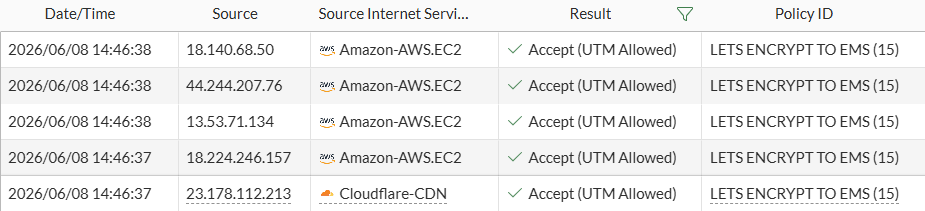
FortiClient EMS is treated as a DMZ service, but that doesn't mean you want the entire internet hitting the EMS Apache web server with no security controls in place just to provision Let's Encrypt certificates. Fortunately, a FortiGate gives you plenty of options for locking down this process and shrinking the attack surface — and that's exactly what this article will cover.
How does Let's Encrypt actually work with FortiClient EMS?
Let’s Encrypt supports several challenge types, and FortiClient EMS uses the HTTP-01 challenge. As Let’s Encrypt describes it, the process works as follows:
- EMS gets a token from Let’s Encrypt
- EMS puts the token on its own Apache web server on the URL path http://<EMS-FQDN>/.well-known/acme-challenge/<TOKEN>, a standard URL
- Let’s Encrypt checks if the token is available on the server and the URL using TCP/80
- If the token validation is successful, the certificate can be issued
A few things are needed for this process:
- TCP/80 must be forwarded and allowed from outside to EMS — i.e., destination NAT/virtual IP with a matching firewall policy
- TCP/443 does not need to be opened, even if the documentation says otherwise
- A publicly resolvable DNS entry for the EMS server
- This isn't technically required, but it's strongly recommended
- EMS must be able to reach the Let's Encrypt servers externally over TCP/443
Now that we know how it works and what it requires, how do we secure it? Primarily with a Web Filter and a Web Application Firewall (WAF) profile. Application control and intrusion prevention profiles help as well.
The configuration for all profiles can be downloaded here.
Exclusive Networks accepts no liability for any issues arising from the configurations provided.
Web Filter
Since we know the exact URL that Let's Encrypt uses, we can easily restrict access using a Static URL Filter.
Two rules need to be configured in the Static URL Filter:
- A Monitor wildcard entry for „<FQDN>/.well-known/acme-challenge/*“
- Example: ems.testdomain.at/.well-known/acme-challenge/*
- A Block entry that blocks everything else
- Example using regular expressions: .*
The FortiGuard categories can be disabled.
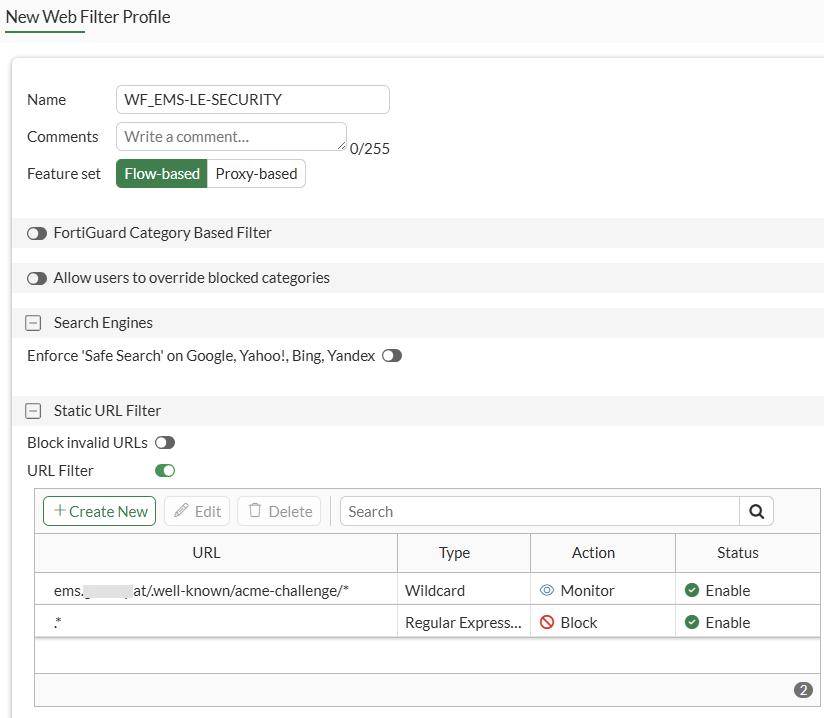
That's all we need in the Web Filter, so let's move on to the Web Application Firewall profile.
Web Application Firewall
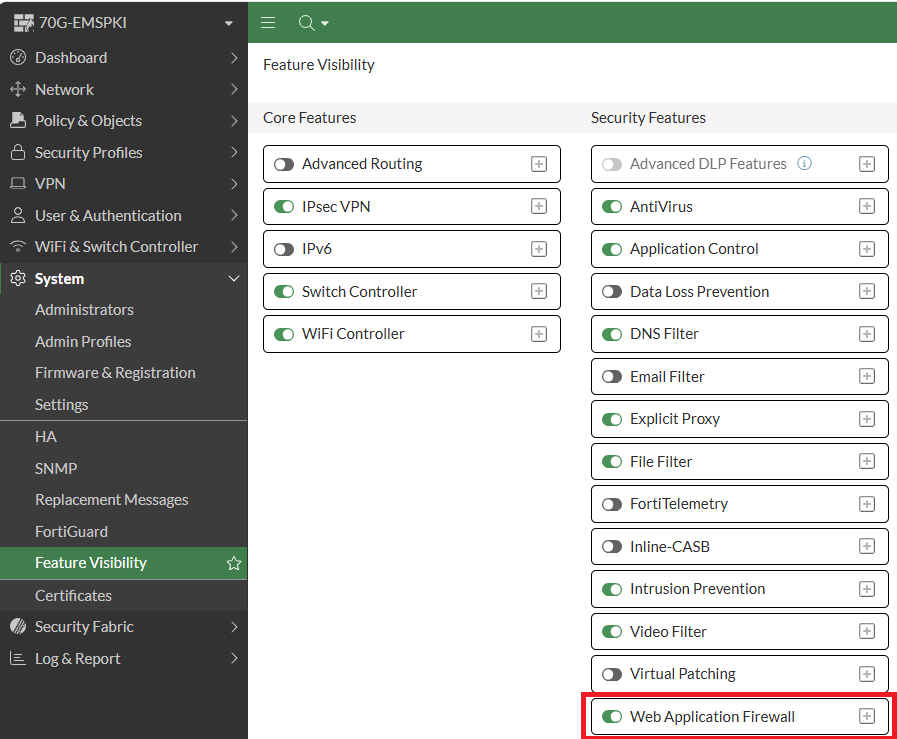
First, let's make sure Web Application Firewall is enabled under Feature Visibility, so it actually shows up in the GUI. The feature would work either way — this is purely cosmetic.
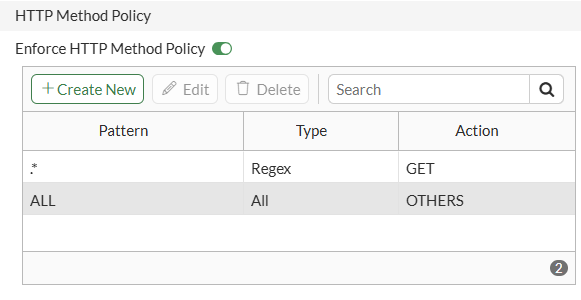
In the Web Application Firewall profile, under Security Profiles, you can enable the Enforce HTTP Method Policy option. Once enabled, two entries can be created and configured:
- A regular expression entry with the pattern .*, allowing only the GET method.
- On the existing Default entry, set the method to OTHERS.
The other settings in the profile don't necessarily need to be configured here, or may not even be relevant.
Application Control
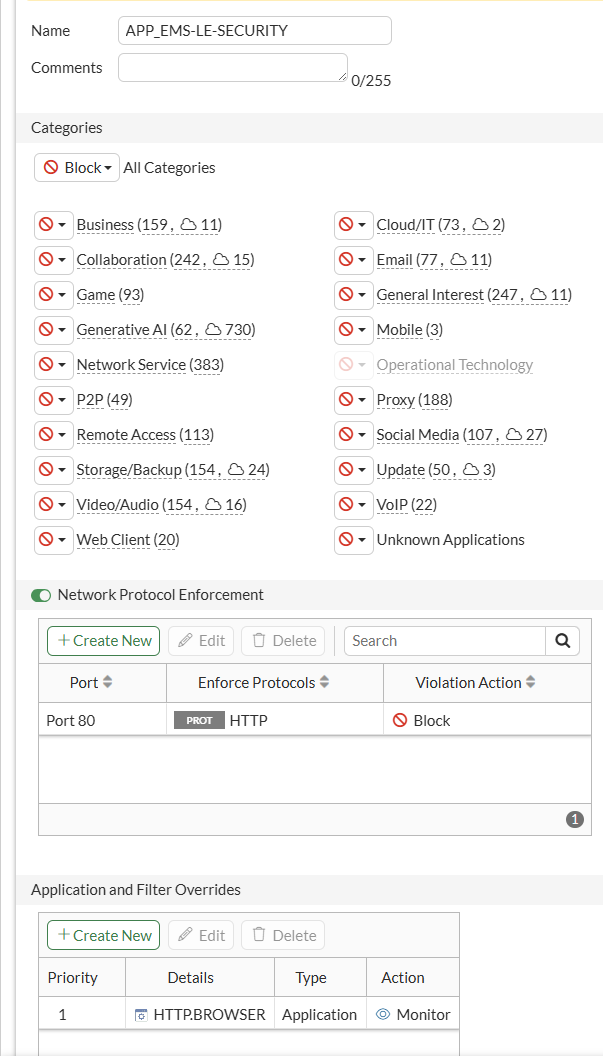
In Application Control, all categories can be set to Block, with an override allowing only HTTP.BROWSER.
Network Protocol Enforcement is also enabled for HTTP on port 80.
Intrusion Prevention
For the Intrusion Prevention profile, there are two approaches:
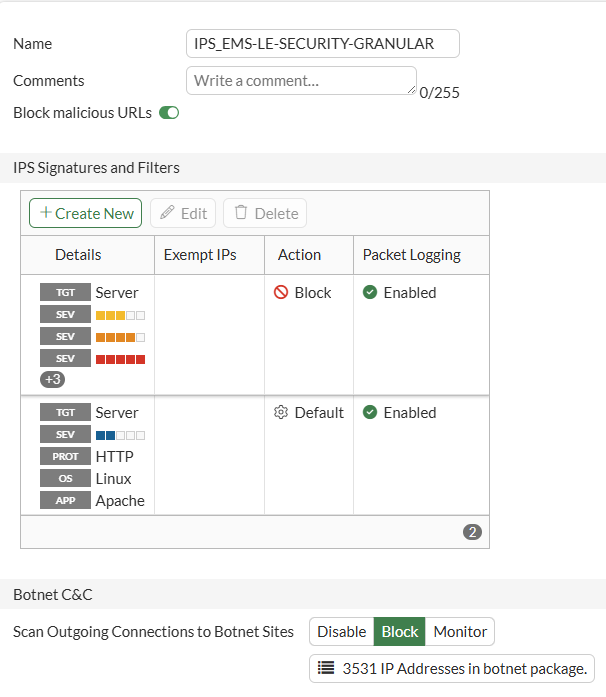
- Method 1: Granular — where we only protect the target server, which in this case is a Linux Apache HTTP web server.
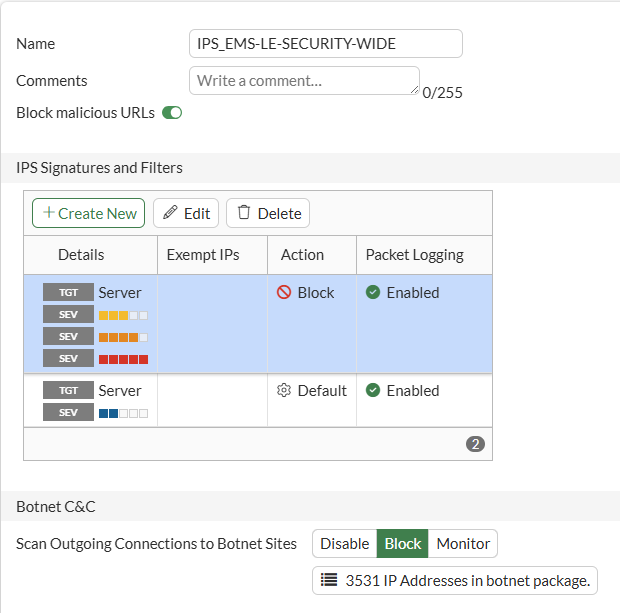
- Method 2: Broad — where we protect the target server more generally.
As of mid-June 2026, Method 1 covers a total of 388 signatures, while Method 2 covers 7,666.
A good rule of thumb for building IPS profiles: always block Severity Medium and above, and only use the Default Action for Informational.
Both approaches work, but if performance is a priority, Method 1 is the better choice.
With these profiles in place, we can now configure the Firewall Policy.
Firewall Policy
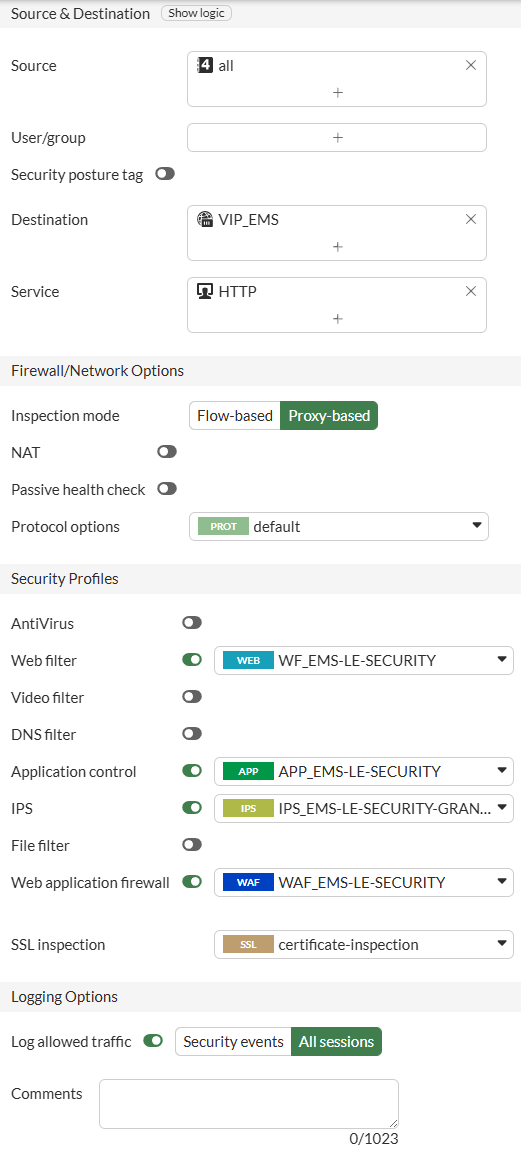
A few things are important in the firewall policy that handles access from the Let's Encrypt servers to FortiClient EMS:
- The Service HTTP (i.e., TCP/80) is sufficient
- The virtual IP for EMS must be available — or the correct IP if Central NAT is used
- The inspection mode must be proxy-based, otherwise the WAF profile can't be asssigned
- In testing, the Internet Service Database object for AWS servers couldn't reliably be used, since Cloudflare servers sometimes showed up as well
- Assign all four profiles that were created
- Deep Inspection isn't needed, since only HTTP traffic is being forwarded to EMS, and that traffic isn't encrypted
With the firewall policy in place, a Let's Encrypt certificate can now be requested on EMS.
Verification
Requesting the certificate is quick, the following documentation walks through this process:
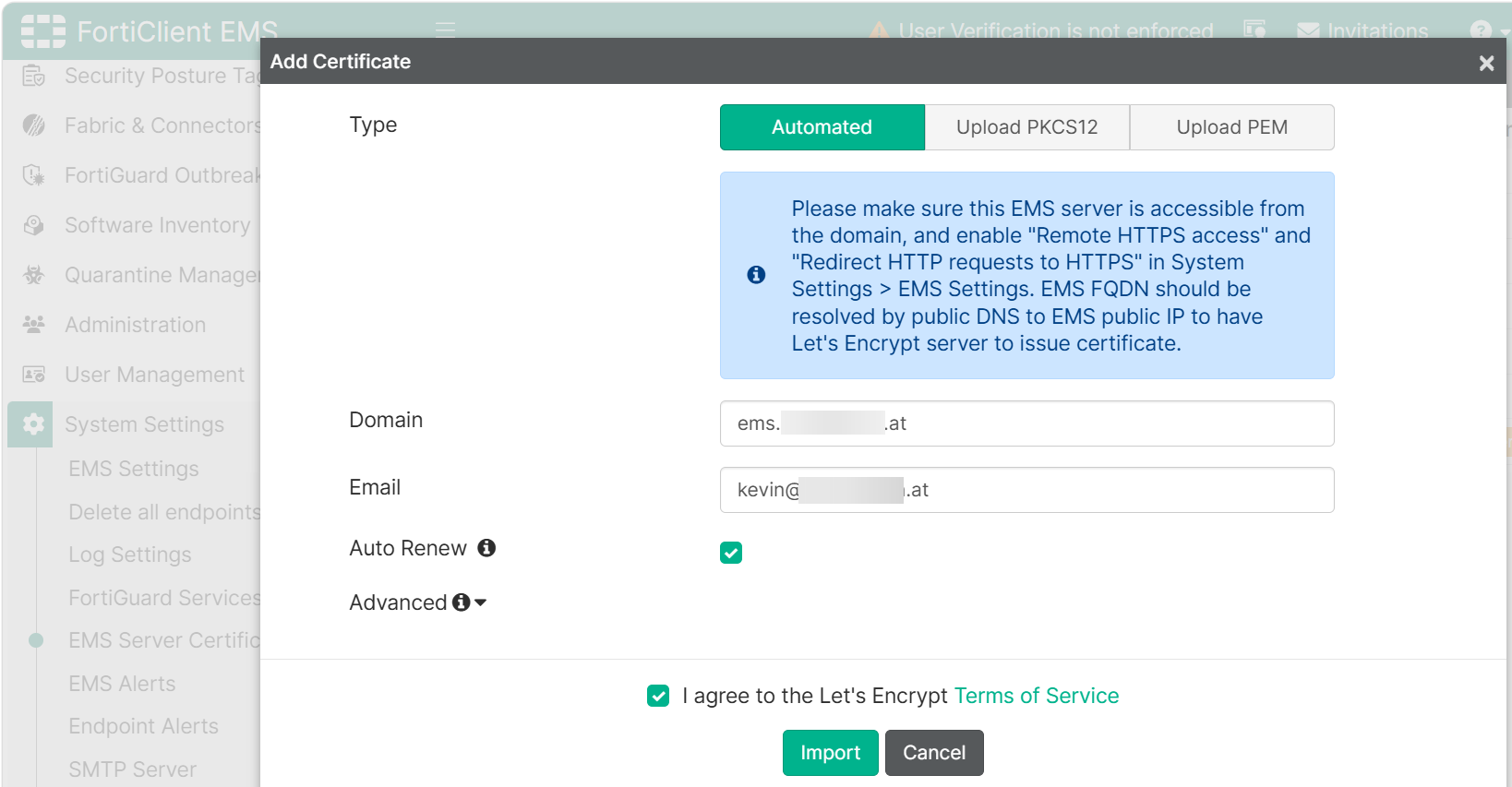
From System Settings -> EMS Settings, you can then select the certificate for the web server and endpoint control.

On FortiGate, the Web Filter log shows that the connection to http://<FQDN>/.well-known/acme-challenge/<TOKEN> was completed with the token and was allowed.

Attempting to access other URLs over HTTP — for example, the management interface — doesn't work.

The Application Control log shows the HTTP.BROWSER application.
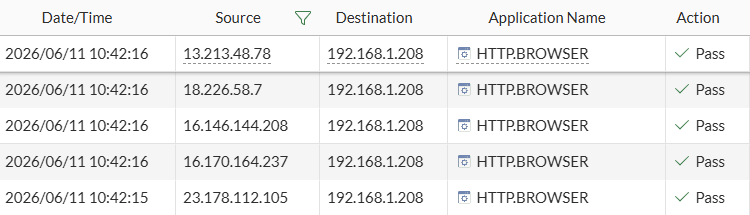
The Web Application Firewall and Intrusion Prevention logs show nothing, since no violations occurred.
Wrapping Up
Even though Let's Encrypt isn't as transparent about this topic as one might wish, the features of a FortiGate can still be used to add an extra layer of security. The required configuration is fairly straightforward to implement, and hopefully you can apply this approach to FortiClient EMS as well as other services.
If you have suggestions for future posts, would like to see configurations, also in video format, or want to give feedback, please send them to techxperts_central@exclusive-networks.com
Latest blogs
View all BlogsFeatured
Blogs
Beyond Refurbished: Why Trust Is Becoming the Real Value Driver
Featured
Blogs
FortiNAC as RADIUS server for wired/wireless 802.1X/MAC auth
Featured
Blogs
Building AI Security That Actually Works: A Technical Deep Dive into F5 AI Guardrails and AI Red Team
Featured
Blogs
The AI Adoption Paradox: Why Your Biggest Opportunity Is Also Your Biggest Risk
Featured
Blogs
Falcon Adversary OverWatch: Stop hidden threats with 24/7 expert threat hunting
Featured
Blogs

